Working with payments
The Payments section lets you view all transactions and their details, filter records, initiate secondary payment operations, and export data in spreadsheet format.
Transaction filter
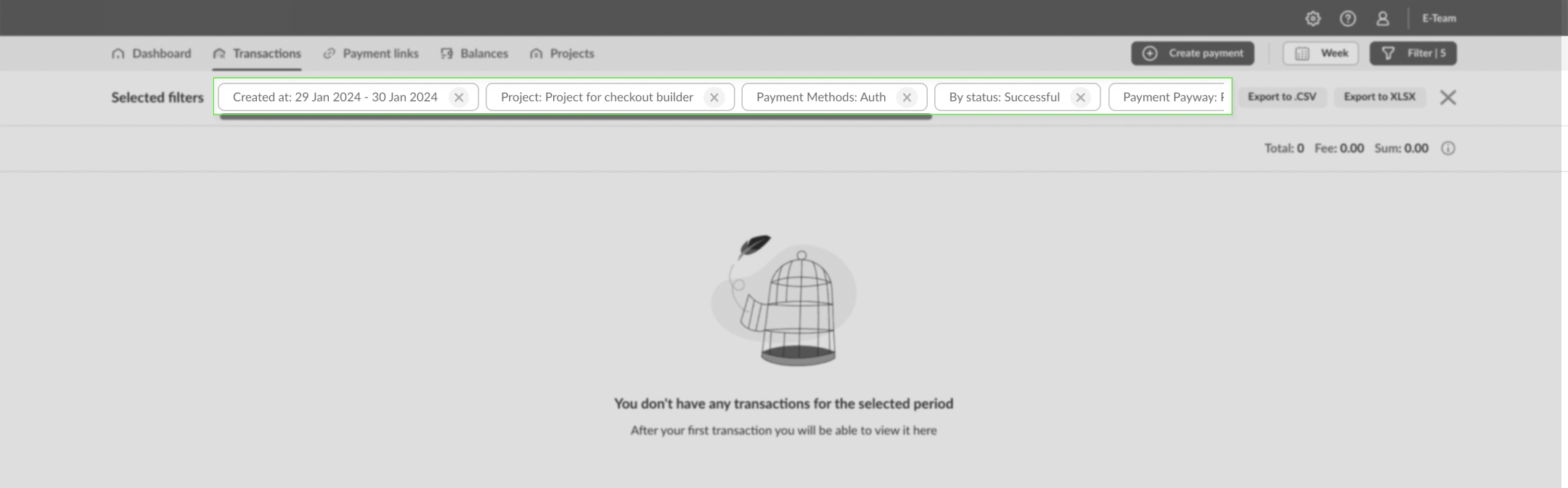
The filter block lets you define the parameters used to display transactions on the page. You can filter transactions by:
- Date when the transaction was created or processed.
- Projects where payments were processed. When working with many projects, you can search by partial match in the project list.
- Transaction methods: payment, pre-authorization, capture, void, refund, P2P transfer, payment card verification, payout, disputes, and manual transfers: withdrawal, account top-up, and rolling reserve top-up.
- Show final transactions (two-step payment): hides pre-authorization records if the order already has a capture or void transaction when two-step payments are used.
- Payment statuses.
- Payment methods (payment instruments). To use this filter, start entering the payment method name and select it from the dropdown list.
- Card brand (Visa, Mastercard).
- Payment amount range and currency.
- Payment number (unique for each transaction).
- Payment attributes.
- Order number and/or description.
- Payer information (email, phone, payment card mask) or P2P recipient information (recipient card mask).
- Sub-operation number and/or sub-merchant (only for split payments).
Filter parameters can be used separately or in any combination.
Selected filter parameters are displayed at the top of the page. You can remove any of them or clear all filters at once.
Payment list and additional actions
The Payments section displays a structured list of payments.
The following actions are available on the page:
Export filtered transactions in CSV or XLSX format.
Counter for the number of transactions, their amounts, and related fees.
infoTo display counter information, select a filter for a specific currency.
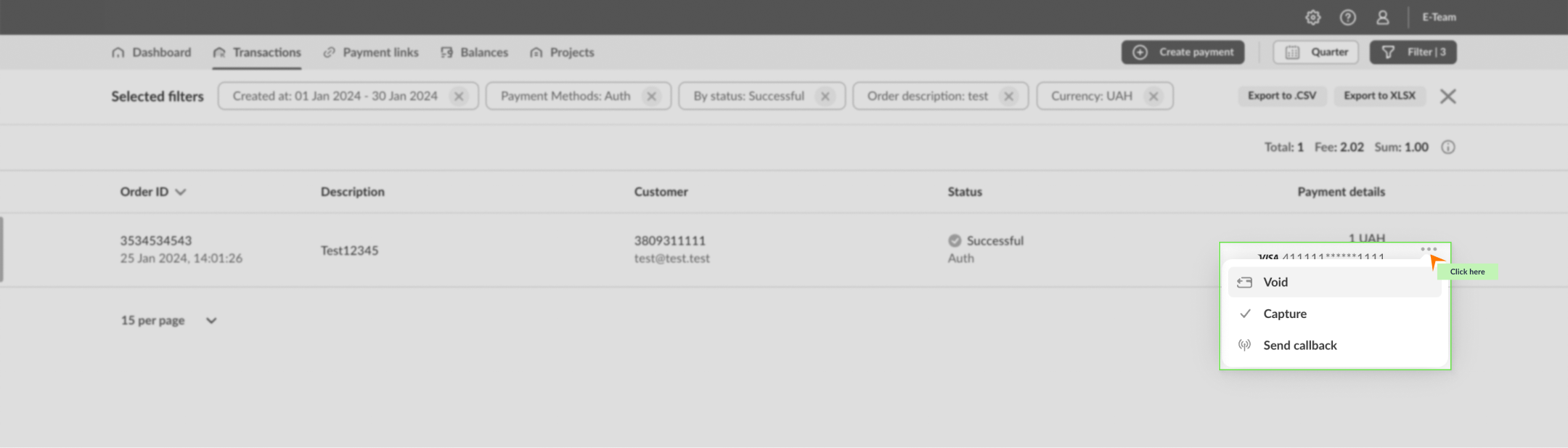
Actions for a specific payment, depending on the transaction method:
- Void pre-authorization
Available only for successful pre-authorization (auth) transactions. This action releases the full amount previously reserved on the payer's account. - Capture pre-authorization
Available only for successful pre-authorization (auth) transactions. This action requires entering the amount to capture. If only part of the reserved amount is captured, the remaining amount is automatically released. - Refund (split payment refund)
Available only for a successful payment (purchase) or successful capture. Refunds can be processed for the full payment amount or for part of it. Refunds have specific behavior when working with payment fiscalization. - Download receipt
Available only for successful payment (purchase), payout (credit), or refund transactions.
For pre-authorization (auth) transactions, the receipt can be downloaded if a capture was processed for the transaction. - Send callback for the payment to your endpoint.
- Download credit certificate
Available only for a successful payout (credit), provided that the corresponding feature is configured for your project. - Update status to refresh the transaction status.
- Void pre-authorization
To view the actions available for a payment, click the corresponding component in the transaction row. The set of actions depends on the transaction method and status.
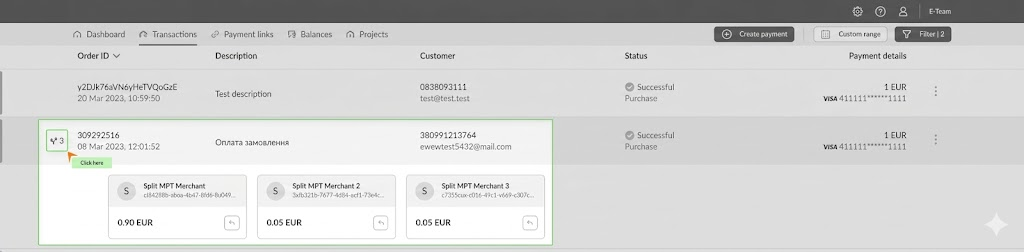
Split payment records also include information about their sub-operations, which can be expanded by clicking a dedicated component.
Payment details
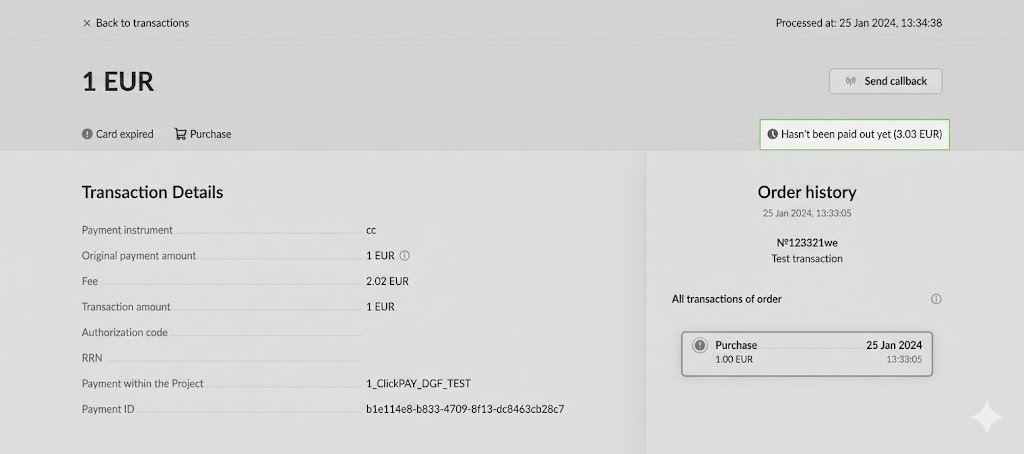
You can view details of an individual payment by clicking it in the transaction list.
For a standard transaction, the opened window contains the following blocks:
- Payment information:
- Payment method (payment instrument).
- Transaction amount excluding external fee, if an external fee is used.
- Transaction fee.
- Total transaction amount including fee.
- Transaction authorization code on the bank side.
- RRN transaction identifier in the bank payment processing system.
- Payment project name where the transaction was processed.
- Unique transaction identifier in WhiteBoot.
- Payer information:
- Name.
- Email.
- Phone.
- IP address used for the payment.
- Payer card mask.
- Payment card brand used for the payment.
- Issuing bank.
- Recipient card mask for P2P transfers.
- Order history: a list of all transactions related to the corresponding order. You can switch between transactions by clicking the relevant record in the list.
- Additional actions available for the transaction.
Depending on the merchant's business model, payment details may also show whether a payout was processed to your bank account for this payment.